Workload Optimization↑
Workload Optimization compares each workload's CPU and memory requests against its actual usage over time. Where a workload asks for much more or much less than it uses, CAEPE recommends new values and can apply them for you with AI Remediation.
To open it, select Day-2 Ops in the CAEPE menu, then select View Information on the Workload Optimization card. The card shows how many workloads have a Warning and how many are Good.
View right-sizing recommendations↑
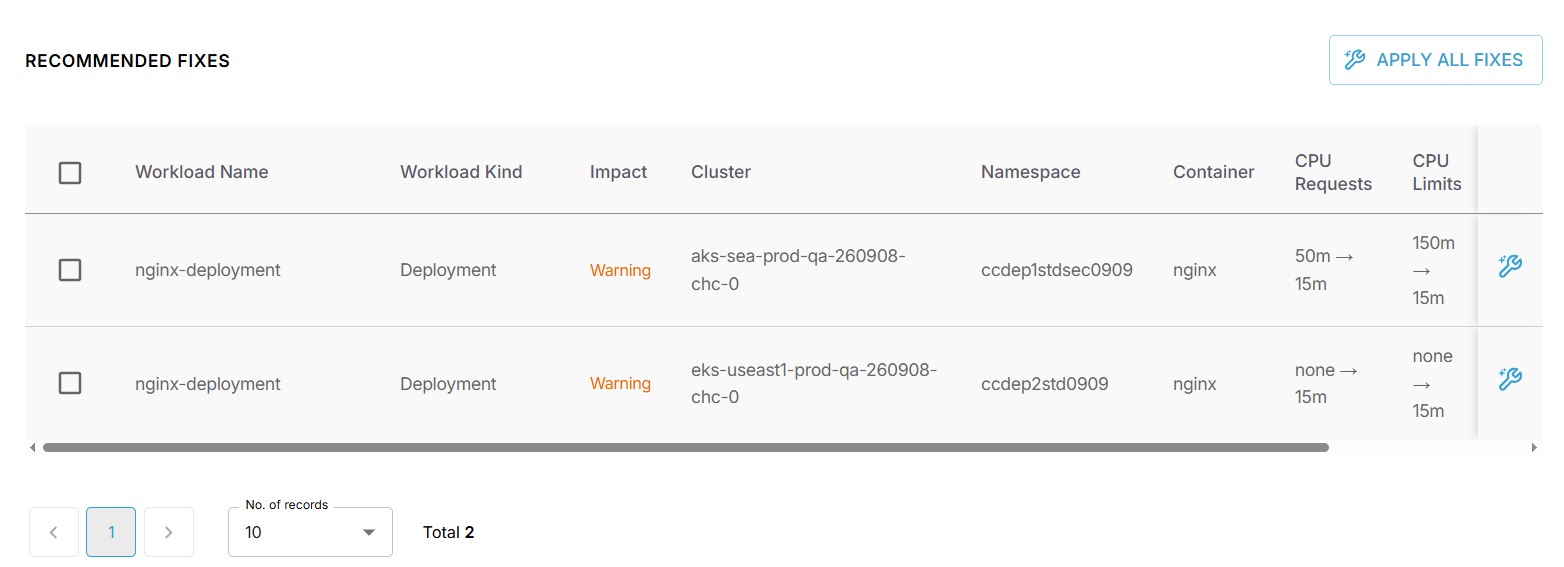
The Recommended Fixes table lists one row for each container that CAEPE recommends changing. For each row, it shows the workload name, workload kind, impact, cluster, namespace, and container, followed by the current and recommended values for:
- CPU Requests and CPU Limits
- Memory Requests and Memory Limits
Values are shown as current → recommended. For example, none → 100Mi means that no memory request is set today and CAEPE recommends 100 MiB.
You can narrow the list with Filter by Impact, Filter by Cluster, or by searching for a namespace or container. To refresh the recommendations, select Run Scan.
AI Remediation needs an AI provider credential. See Set up Recommendations.
Apply a recommended fix↑
A fix adjusts the workload's CPU and memory settings to the recommended values.
Before you apply a fix↑
Keep the following points in mind:
- Applying a fix restarts the affected workload while the change takes effect.
- Fixes take several minutes and run in the background.
- There is no one-click undo. If you need to restore a previous value, ask your cluster administrator for help.
Apply the fix↑
-
On the Workload Optimization page, find the workload in Recommended Fixes.
-
Apply one or more fixes:
- To apply one fix, select the wrench icon on that row.
- To apply several fixes, select the rows and then select Apply All Fixes.
-
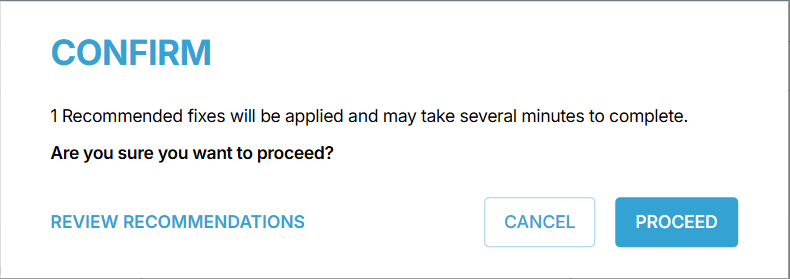
Review the confirmation message.
-
Select an option:
- Review Recommendations shows more details about the selected recommendations.
- Cancel closes the message without making changes.
- Proceed starts the selected fixes.
After the fixes finish, check the affected workloads to confirm that they are working as expected.
What a fix changes↑
A fix changes only the CPU and memory settings for the workloads you selected. It does not change the workload's application, number of copies, or other settings. CAEPE also records the change in Audit Trails.
Optimisation is an ongoing process↑
Optimising a workload is not a one-time activity. Recommendations may continue to change because:
- CAEPE gathers more information. Early recommendations are based on less history. Over time, CAEPE can account for recurring busy periods and other usage patterns.
- Workloads change. New releases, more users, and seasonal demand can increase or reduce the resources a workload needs.
- Recommendations follow the latest evidence. A later recommendation may move a value up or down. This does not necessarily mean the earlier recommendation was wrong; the available information may have changed.
Review recommendations regularly, especially after a major release or a significant change in usage. After applying a fix, allow the workload to run through a normal usage cycle before deciding whether another change is needed.
If something does not look right↑
| What you see | What to do |
|---|---|
| A selected workload was not changed | The fix may still be running, or the cluster may have been unavailable. Wait a few minutes, then check again. If it is still unchanged, try again after the cluster has been running normally. |
| No fixes were applied | Check that the cluster is connected and that your organisation has added an OpenAI API key credential with a base URL and model. |
| The fix was not allowed | Ask your administrator to check your access to the workload and cluster. |
| You need to restore a previous value | Ask your cluster administrator to restore the earlier settings. |