Approvals↑
This guide shows you how to require approval before a deployment goes ahead. You can access Approvals from the CAEPE Management > Approvals menu item.
Approvals has three parts:
- Approver groups are the users who can approve or reject requests.
- Approval configs set which deployments need approval, and which approver group reviews them.
- Approval requests are created when someone deploys a resource covered by an approval config. The deployment waits until an approver acts on the request.
Info
You need Admin or Approvals read/write permissions to manage approvals. Every user in an approver group must also have one of these permissions.
To set up approvals, first create an approver group, then create an approval config that uses it.
Viewing approver groups↑
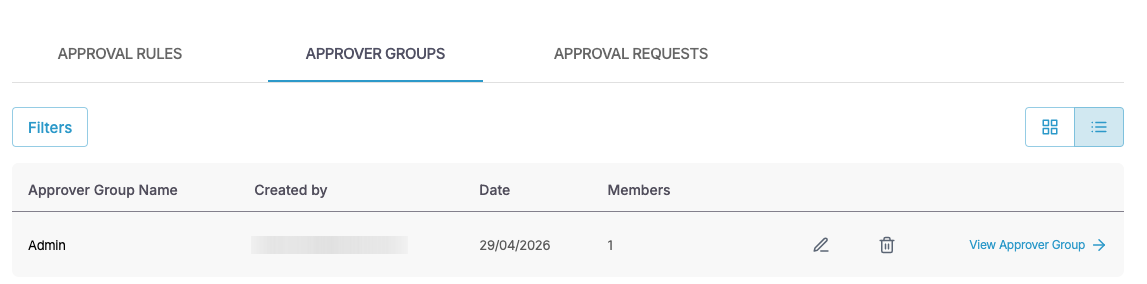
Click the Approver Groups tab to see the approver groups in your account.
You can switch between a "list" and "grid" view and filter the groups by clicking the Filters button.
Each entry shows the group name, who created it, the date, and the number of members. Click the pencil icon to edit the group or the wastebasket icon to delete it.
Approver group details↑
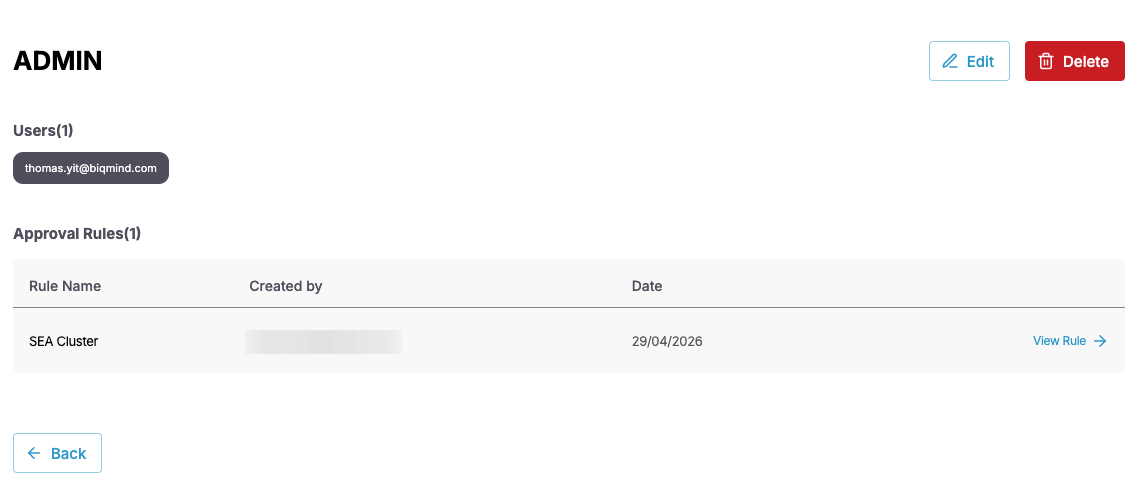
Click the View Approver Group link next to any group to see its users and the approval configs that use it. You can also edit and delete the group from the details page.
Create an approver group↑
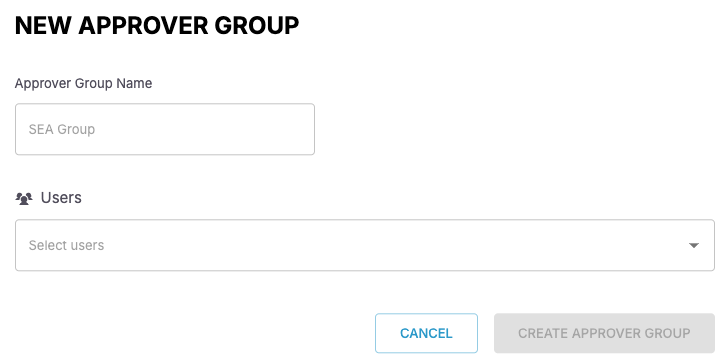
- Click the Approver Group button.
- Enter an approver group name.
- Select one or more users.
- Click Create Approver Group.
Viewing approval configs↑
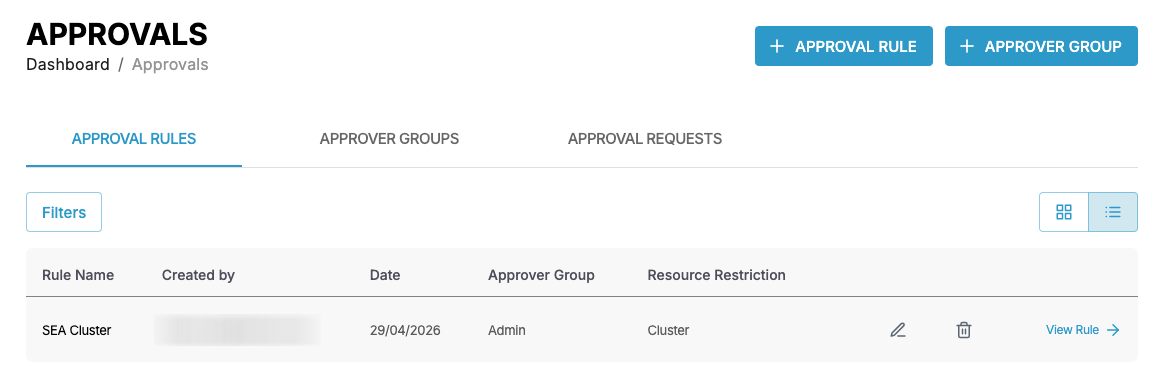
Click the Approval Configs tab to see the approval configs in your account. This tab is selected by default.
You can switch between a "list" and "grid" view and filter the configs by clicking the Filters button. You can filter by config name, resource restriction, and approver group.
Each entry shows the config name, who created it, the date, the approver group, and the resource restriction. Click the pencil icon to edit the config or the wastebasket icon to delete it.
Approval config details↑
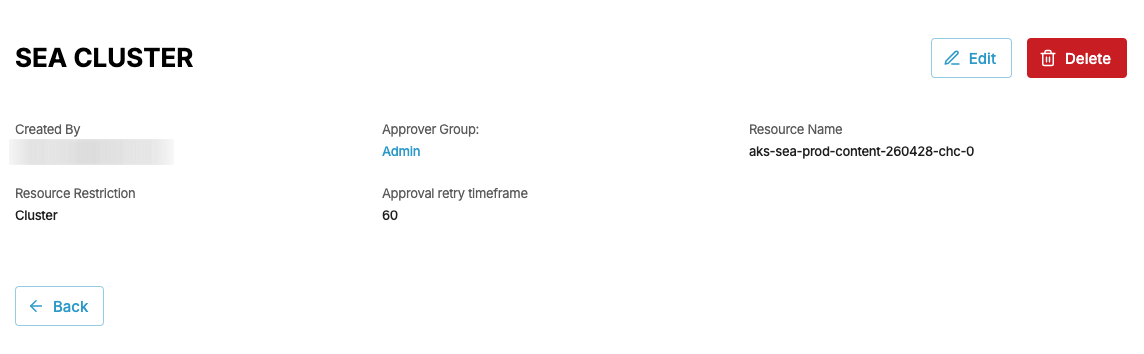
Click the View Config link next to any config to see its approver group and rules. You can also edit and delete the config from the details page. Deleting a config also deletes its rules.
Create an approval config↑
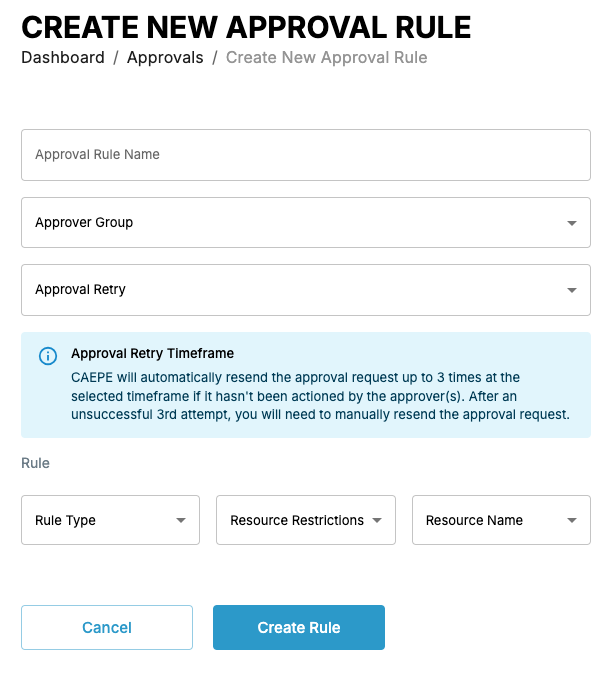
- Click the Approval Config button.
- Enter an approval config name.
- Select an approver group. If you don't have one yet, click Create Approver Group.
- Select an approval retry timeframe, from 15 minutes to 48 hours. If nobody acts on a request, CAEPE resends it at this interval, up to 3 times. After the third attempt, you need to resend the request yourself.
-
Under Rules, add one or more rules. For each rule, set:
- Rule name
- Rule type: Deployment is the only option at present.
- Resource restrictions: Deployment, Application/Application Group, or Cluster/Cluster Group.
- Resource name: the deployment, application, or cluster the rule applies to.
Click New Rule to add another rule.
-
Click Create Approval Config.
Approval requests↑
When someone deploys a resource that matches a rule, CAEPE creates an approval request and holds the deployment. The deployment goes ahead only after the request is approved. If the request is rejected, the deployment doesn't go ahead.
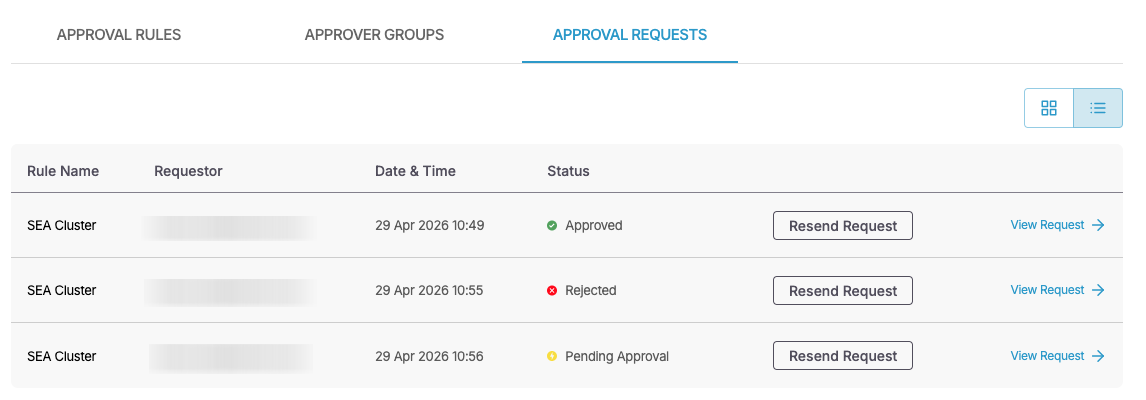
Click the Approval Requests tab to see the requests in your account. Each entry shows the config name, the requestor, the date and time, and the status, for example Pending Approval or Rejected.
Approve or reject a request↑
If you are in the approver group, you can act on a pending request:
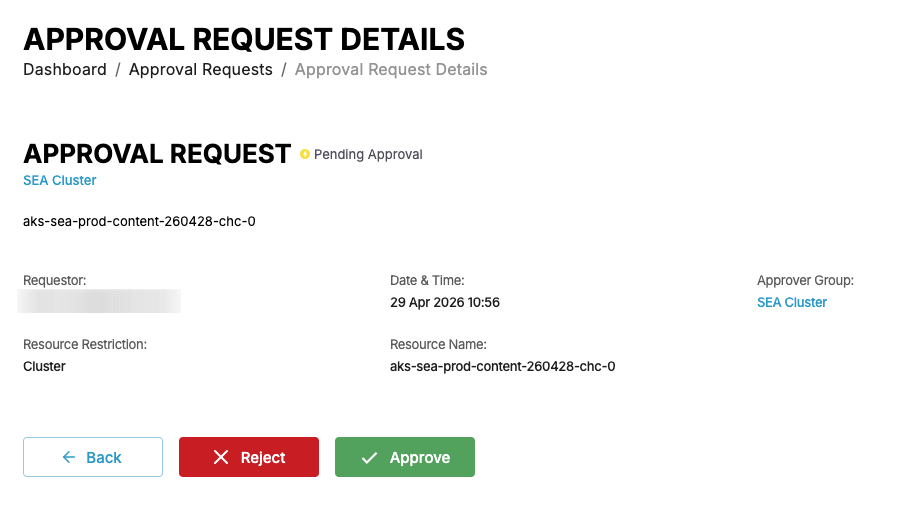
- Click the View Request link next to the request. The details page shows the requestor, the approver group, and the resource the request is for.
- Click Approve or Reject.
Only one approver from the group needs to act. After a request is approved or rejected, no further action can be taken on it.
Resend a request↑
Click the Resend Request button next to a request to send it to the approver group again.